Some books arrive without a reason. Someone tells you to read it, you take their word, and a few chapters in you are turning pages while nothing lands. You never learned what you were looking for.
Understanding a book starts with understanding why you are reading it. Without that, you finish with a few highlights and a vague sense of having been in the room. With it, every chapter has a job to do.
I ran into this with Capitalism and Freedom by Milton Friedman. It was recommended to me, and I opened it with no clear sense of why it mattered. I could have read on and hoped the reason would surface. Instead I decided to build the reason first.
The workbook
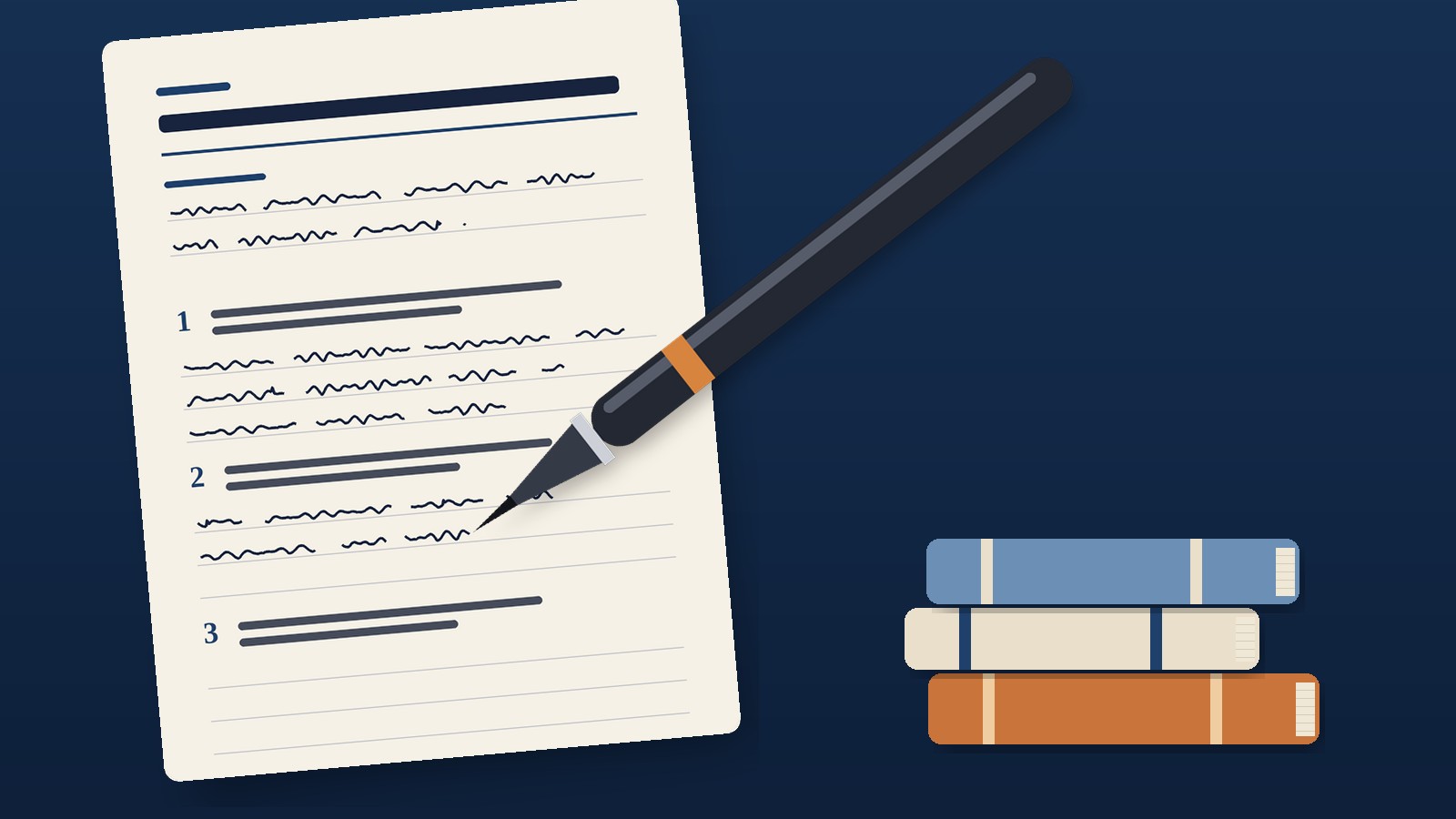
The workbook is a PDF that AI builds for me before I read the first page. Every book gets the same structure.
The first page is an abstract: what the book is, when it was published, who wrote it, the themes that keep returning, and how to read it. For Friedman, the instruction is to read it as an argument. That one line changed my approach. I stopped collecting facts and started tracking claims and the evidence behind them.
Each chapter then gets its own page. At the top is a single line: why am I reading this? Below it are three questions to carry into the chapter and answer as I go. At the bottom is an open notes section for everything the questions did not anticipate.
The back of the workbook holds two tools. The first is a page of key terms, the concepts the book depends on. The second is a vocabulary log with three columns: the word, the page where I found it, and what I think it means in my own words.
Why the pen
Writing by hand slows me down in the right places. I upload the PDF to my reMarkable Paper Pro and write directly on the pages.
Typing is fast, and fast is a problem when the goal is understanding. A keyboard lets me transcribe a thought without ever holding it. The pen forces a decision about what is worth the effort of writing. An answer to a chapter question has to pass through my mind and my hand before it reaches the page, and that is where the learning happens.
I think of it as a touch point. The book is in front of me, the pen is moving, and the two stay connected. The device keeps the feel of paper, and the PDF keeps everything for one book in a single file I can carry anywhere.
The division of labor
AI builds the structure, and I do the thinking.
The model was trained on a great deal of written literature, so it is well placed to say what a book argues, where it sits, and what a careful reader should watch for. That is scaffolding. It tells me where to look.
It cannot do the looking. The answers on the page are mine. The definitions in the vocabulary log are in my own words, written before I check anything. If the same tool that built the workbook also filled it in, I would own a tidy document and no understanding.
There is one limit worth stating plainly. The model builds from what it knows about a book, not from the pages in my hands. When I asked for vocabulary from each chapter, it could not pull words from my edition. So the key terms page covers the core concepts of the book, and the vocabulary log stays blank for me to fill as I read. I would rather have an honest blank than a confident guess.
Build your own
You can set this up for any book in a few minutes. Start with this prompt and replace the brackets.
I am reading [title] by [author]. Build me a printable reading workbook as a PDF.
Page 1: an abstract covering what the book is, when it was published, who wrote it, its recurring themes, and how I should read it.
For each chapter, one page with a line at the top asking why I am reading this chapter, three questions to answer while I read, and an open notes section.
At the end: a page of key terms to know, with the chapter where each appears, and a blank vocabulary log with columns for the word, the page I found it on, and what I think it means in my own words.
Leave plenty of room to write by hand. If you cannot source something from the book itself, say so and leave it blank.
The tool matters less than the sequence. Decide why you are reading, write it down, then let the book answer.
For part of my career I worked the line at a cabinet plant. Now I am the one who walks in with a deck, a set of questions, and a recommendation. I know both views, and I have come to believe the second one forgets what the first one knows.
What the redesign got right, and what it missed
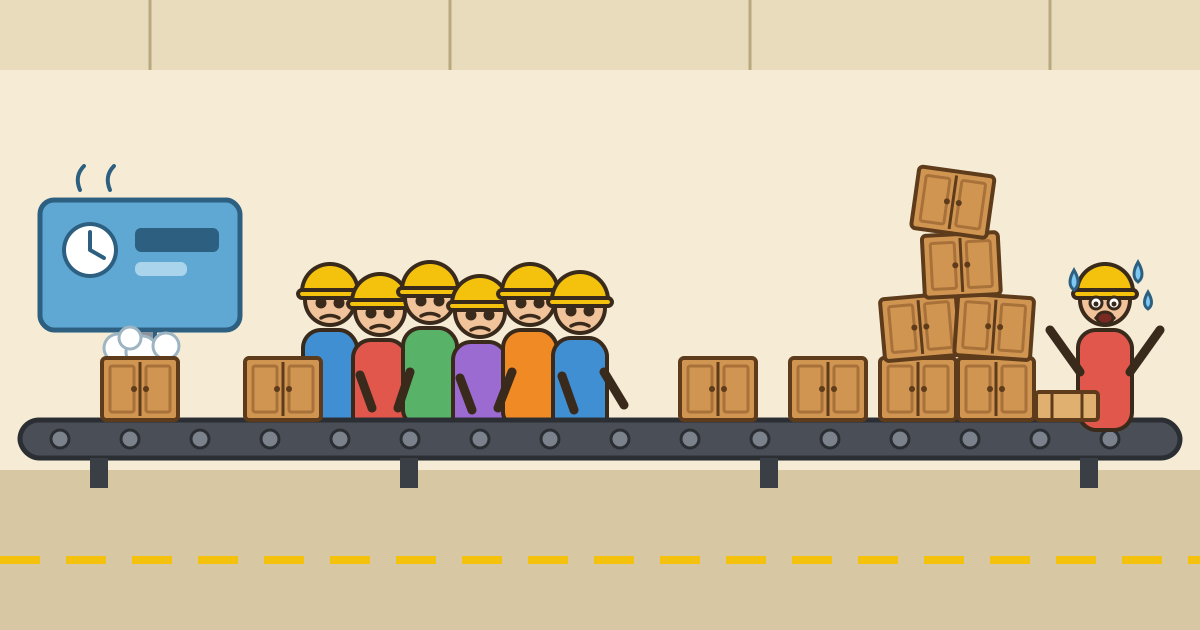
At the plant, the line was redesigned to increase productivity. The logic was clean. The responsibilities in each cell were divided in half, so each person had less to do and the work moved faster.
On paper, it worked. We produced more cabinets.
Then the floor started to change. Splitting the work meant adding people, and more people meant tighter space. Moving around the line got harder. The extra hands that were meant to speed things up were now in each other’s way.
The next problem showed up at the end of the line. We were building more cabinets than one person could crate. All the speed we had gained piled up at a single station, and that one person became the bottleneck for the whole operation. The line could only run as fast as the crating allowed.
Then there was the foam. The foaming machine insulated the cabinet, but the foam needed time to set and cure before anyone could work on it. That wait introduced variance into production. Some cabinets were ready when the next cell needed them. Others were not. The rhythm the redesign promised kept breaking in small, unpredictable ways.
None of this was visible in the plan. All of it was visible to the people standing on the floor.
What we are trained to see
Consultants are hired for expertise, and we earn it. We learn to run discovery, ask sharp questions, and gather requirements with discipline. We map the process, find the gap, and design the answer.
But gathering requirements is not the same as living inside them. A requirement is a sentence on a page. For the person doing the work, it is Tuesday morning, a full queue, a crowded aisle, and a supervisor asking why the numbers moved.
If our whole career has been spent collecting the story of the work, we can mistake the story for the work.
The job behind the task
This is where the Jobs to Be Done approach earns its place. The idea is simple. People do not adopt a solution because of its features. They bring it into their work to get a job done. If we want to understand why something succeeds or fails, we have to understand the job.
The redesign at the plant focused on the task: make each cell do less. But the job was larger than that. The job for the people on the line was to build a cabinet to standard, keep their pace, avoid rework, and finish the shift without fighting for space. The job for the operation was to get finished cabinets out the door.
A redesign can improve a task and still damage the job. We made one step faster and made the whole system harder to run.
That is the question I try to ask now, before any recommendation: what job is each person trying to get done, and does this change help them do it or get in the way?
Asked early, that question surfaces the things a process map hides. How much room people need to move. Where work will collect when one step speeds up. What waits, like curing time, will do to the rhythm. Those are not edge cases. They are the job.
Where the recommendation lands
A recommendation does not stay in the conference room. It travels. It becomes a new layout, a new approval step, a changed routine, a number someone will now be measured against.
The people who receive it were rarely in the room when it was shaped. They find out what we decided when it shows up in their day. Some will see the logic right away. Others will see one more thing added to a job that was already full.
I know the quiet that settles over a floor when a change is announced and nobody has been asked a question about it. That quiet is not agreement. It is people deciding how much to say.
What we owe
I think our responsibility to the client has three parts.
Understand the job, not just the process. Spend time where the work happens. Ask people what slows them down and what they would never want to lose. Watch the movement, the waiting, and the workarounds. A workaround is not a violation. It is the floor telling us where the design fell short.
Look past the step you are improving. Every gain moves pressure somewhere else. Before we celebrate a faster cell, we should know where the work will pile up next, and who will be standing there when it does.
Stay accountable after the handoff. The engagement ends on our calendar. For the client, it begins there. We owe them our attention through the stretch when the new way is harder than the old way and trust is thin.
The people side is the work
I do not see the people side as soft. It decides whether the technical work survives.
A well built solution that people resent will be worked around, then abandoned, then quietly replaced. A good solution that people helped shape will be defended, improved, and carried forward by the ones who live with it.
That is the difference between delivering something and leaving something behind.
What I try to remember
Before I make a recommendation, I picture the person who will receive it. Not the executive who signed the statement of work, but the one standing at the line, the counter, or the desk. I ask what job they are trying to get done, and whether I would be willing to work inside what I am about to propose.
If the answer is yes, I put it forward with confidence. If the answer is no, I have more work to do.
We are hired to know things. We are trusted when we remember who we know them for.
Every few weeks, a new model or feature ships, and by the afternoon something has been canceled.
A tool. A category. Sometimes an entire profession. The timeline moves on before anyone asks what the claim rests on.
I’ve watched this pattern repeat across Anthropic releases, Grok, and every other model that lands with a good demo. The announcement is real. The verdict that follows it usually isn’t.
The server room nobody tweets about
In 2019, I joined my first IT team. We were running SQL Server 2016.
Nobody on that team was careless. The system worked, the data was governed, the integrations were tested, and the people responsible for uptime had no reason to trade a stable thing for a newer one. The upgrade was on the roadmap. It just wasn’t on the roadmap yet.
That is what adoption looks like inside an organization. It moves through budget cycles, security reviews, compliance sign off, retraining, and the quiet math of what breaks if something changes. The vendor’s release date is the beginning of that process. It says nothing about the end.
The Unix box that wouldn’t die
There was also a Unix box.
It sat in the corner of that same environment, running long after anyone would have chosen it, and it kept running. They don’t build them like that anymore. It held legacy data, and the presales engineers and technical engineers reached for that data in their daily work. Nobody was nostalgic about it. They used it because the answers they needed were there.
When something did go wrong, I didn’t open a ticket with a vendor or search for a tutorial. I called one person. He worked on Unix systems, and he would remote in, look around, and fix it. He had built a career on knowing machines that the rest of the industry had already declared finished.
That stays with me. If a technology is dead, no one is paid to keep it alive, and no one gets a call when it breaks. But there was a man whose phone rang because the engineers still depended on what that machine held.
Someone’s career was proof of life.
Two clocks
Announcements run on one clock. Enterprises run on another.
The first one measures in weeks. The second measures in years. Some of those years belong to a whole profession. There are people who spend a career keeping the older systems standing, and the businesses that rely on them are glad they exist.
When we say a product is canceled, we’re reading the fast clock and applying it to the slow one. We treat a signal about the future as a fact about the present.
Most of what gets called canceled is still running payroll, moving inventory, and closing the books at companies that will not change it this year, and shouldn’t have to.
What the verdict costs
This isn’t harmless. When the timeline declares something dead, someone in a leadership meeting hears it and asks why we’re still using it.
Now a team that made a sound decision has to defend it against a demo. Clients start to feel behind for staying with tools that still deliver. Money moves toward replacement projects that solve nothing the old system wasn’t already solving.
I sit in these rooms. The pressure to rip and replace almost never comes from a failed workload. It comes from a headline.
Where the other side is right
New capabilities do change things. For a project starting today, the build or buy decision may look very different than it did last year. Some tools will fade, and a few will fade quickly.
But that’s a statement about new work. The installed base is a different question, and it gets answered slowly, with evidence, one migration at a time.
A better standard
Before I say something is canceled, I try to answer four questions:
What share of real workloads has the new product actually displaced?
What does it cost an organization to switch?
Does it replace the old system, or does it change the calculus for new builds?
Where is the adoption data, and not just the demo?
If I can’t answer those, I haven’t found a death. I’ve found a release.
Technology rarely gets canceled. It gets outgrown, then outlasted, then quietly retired years after the conversation moved on. The people running it deserve better than a verdict that arrived before the evidence did.
My wife doesn’t use Claude. She doesn’t use ChatGPT either, not directly, not by name. What she says, almost every time a question needs more than her own head can give it, is some version of the same line: “Let’s see what Copilot says.”
Not Claude. Not ChatGPT. Copilot. Every time.
I’ve built a career around Microsoft’s ecosystem. I know the gap between these tools is thinner than the marketing around them suggests, and I could make an argument for why one might suit a given task better than another. But that isn’t what struck me about her sentence. What struck me is that she never asks which AI to use. She has one. It’s the one she has. The question of alternatives never enters the room.
And I think that’s the healthier instinct.
Somewhere in the last two years, picking an AI tool turned into a small identity decision. People defend their choice the way they’d defend a phone or a browser or a car. Claude people talk about writing quality. ChatGPT people talk about breadth. Copilot people talk about what’s already sitting inside the software they use all day. Every camp has a reason, and every reason is a little bit true, and none of them matter nearly as much as the conversations happening around them suggest.
Here’s the part worth sitting with: my wife gets useful answers. Reliably. Without ever wondering if she picked the right poison. She picked one, and then she moved on to the actual problem she was trying to solve.
That’s the piece a lot of us lose once we know enough to have opinions. Knowing the differences between these tools is genuinely useful when you’re the one deciding what to build on, what to integrate, what to put in front of a client. That’s my job, and I won’t pretend the choice never matters. But for most people, most days, the tool isn’t the bottleneck. The question they’re asking is.
I’ve watched people stall out entirely because they’re not sure they’re using the “right” one. They’ll wait, or ask around, or read another comparison post, before they’ll just open whichever tool is already sitting on their desktop and ask their question. That hesitation costs more than any gap between the tools ever could.
So pick your poison. Whichever one is already in reach, already familiar, already one click away. Use it until you have an actual reason to switch, not a vague sense that somewhere out there is a better answer to a question you haven’t asked yet.
For years, organizations have been trapped in product silos. You sign an enterprise agreement, you standardize on one product, and you swear by it. There is nothing wrong with that. I used to believe the same thing, until I matured.
I’m not going to climb out on a limb and say that everyone who thinks differently is immature. But I will say this: choosing a single product and dying on that hill is a thing of the past. You have to choose the right tools, and for a consultant, that toolbox is always shifting.
Outcomes over products
In my experience, I’ve implemented many of the same processes across customers in very different verticals. I’ve been fortunate to accomplish a lot with their ERP and the Power Platform. But I’ve also come to understand, especially in the age of AI, that we have to be outcome focused.
If a point solution already handles a specific function, and it has an API, an MCP server, or writes to a SQL database, use it. Then let’s put our energy into the parts that Power Automate, a Logic App, or Copilot can handle.
And what if the answer isn’t Power Automate or any of those tools? Then ask the real question. What is your outcome? What are you driving toward, and what is the best vehicle to get you there? The destination is the same: profitability, efficiency, and fewer nights burning the midnight oil. The terrain just changes depending on the sector you’re in.
Trust me, when I realized I couldn’t Power Automate my way out of every problem, and I was introduced to outcome driven concepts like “jobs to be done”, it bothered me.
Be product agnostic
The best way to serve an outcome is to be product agnostic. That doesn’t mean abandoning my foundation. It means I’m willing to work toward the conclusion, and I don’t care how we get there, as long as we get there.
Pick the harness, not the hype
Throughout this AI race, the rhetoric has been about figuring out which “Bear is best.” For me, even though I’m deeply entrenched in Microsoft technologies, my workflow includes Anthropic. Microsoft, Notion, and Perplexity have all understood the same thing: they need to be a harness where these models can live and actually help the customer.
I use Notion every day to manage my tasks, projects, and everything in between. When they introduced Notion AI, and more recently Agents, I didn’t feel the need to switch between models, because my tasks don’t call for it. When I want a daily digest, or want to build my weekly status report from my various databases, I jump into Claude Cowork and use the Notion MCP server.
I stopped using ChatGPT, not because it’s a bad product, but because it no longer fit my workflow. I still have colleagues who hold the licensing and get plenty out of it.
Look, the point is this. Don’t bring a hammer to a job site that only needs a screwdriver. Every job is different. Select the best tools and deliver outcomes.
The era of open-ended AI ideation is ending. What’s replacing it is disciplined product work. Sessions are no longer judged by how inspiring they sound, but by what they actually enable. Teams aren’t tired of AI. They’re tired of pilots that never ship, noise without signal, and dashboards that can’t prove value.
Brainstorming still matters. But after an expensive huddle, the question that lingers is simple. What did we build that someone can actually use?
You hear it a lot lately. SaaS is dead. ERP is dead. That’s overstated. Deals are still being signed. Platforms are still being bought. What’s really dying is patience. Organizations are reacting to years of bold promises followed by uneven delivery. Capabilities sold as transformative end up incremental. Timelines stretch. Value becomes harder to explain.
Disappointment comes first. Then fatigue. Then frustration. Eventually it shows up where it always does. Tighter budgets. Slower buying cycles. Less trust in the partners brought in to help. Not because the models don’t work, but because the outcomes haven’t matched the rhetoric.
That tension is reshaping how leaders think about AI and transformation. Ideas alone aren’t enough anymore. Activity isn’t progress. What matters is whether the work leads to something shippable, measurable, and owned. If it doesn’t, it blends into the growing pile of initiatives that sounded promising and changed very little.
That shift in expectation is the real story.
Fear of Being Left Behind
A major driver behind many of these costly sessions is fear. Fear of being left behind. AI is everywhere and it’s moving fast. Organizations don’t have to wonder if their competitors, suppliers, or customers are investing in it. They are. That creates pressure to act. Invest now. Build now. Ship something now. And that pressure isn’t imagined. It’s justified.
The problem is what happens next.
Too many teams stop at awareness. We know the market expects AI. We know our competitors are using it. So motion becomes the goal. More tools. More pilots. More demos. Less clarity. The focus turns outward when it should be turning inward.
The harder questions get skipped. Is AI creating business value? Are operations actually better, or just different? Are employees more effective, or simply surrounded by tools they didn’t ask for? When those answers are unclear, the issue isn’t speed. It’s intent.
Knowing others are “doing AI” doesn’t make an organization stronger. Improvement does. That requires stepping back from the noise and being honest about what’s working, what isn’t, and why. AI has to earn its place like any other serious capability. Through outcomes, not excitement.
This is where many strategies start to wobble.
Educate
I recently participated in a hackathon, and the problem showed up almost immediately. The group didn’t have a baseline. Not on the tools. Not on the environments. Not on how anything connected. We could have pushed through and checked the box. That would have been easy. It also would have been meaningless.
The issue wasn’t effort or intelligence. It was context. Basic concepts like environments and connectors became blockers, not because they were complex, but because they were unfamiliar. That raised an uncomfortable question. Who owns that gap? The organization? The facilitator? Me? The goal was to move fast and show what the tools could do. Without shared understanding, speed just amplified confusion.
What helped wasn’t more features. It was grounding. A short deck. High-level. No hype. What each tool does. Where it fits. How the pieces connect. That alone changed the room. Once everyone had a shared mental model, we could build. No-code and low-code tools did the rest. The work improved. The conversation shifted.
That’s when the real lesson landed.
We didn’t need better tools. We needed more time to educate before execution. AI is still intimidating for a lot of people. The anxiety is real, especially for those who fear displacement. That fear doesn’t come from the technology itself. It comes from not understanding how humans stay in the loop and where judgment still matters.
Education isn’t optional. It’s the prerequisite. Organizations either invest in it deliberately or pay for it later through rework, confusion, and missed value. Tools don’t fail on their own. They fail when people are asked to use them without context.
Move with Intent
Once education is in place, the next step is execution. Not rushed execution. Intentional execution.
A colleague shared something that stuck with me. The best hacks start with use cases people already recognize. Real work. Familiar pain. Problems the room doesn’t need explained. When everyone can rally around the same use case, momentum follows. When they can’t, even strong builds struggle to land.
For this hack, I came in top-heavy. Too much solution. Not enough grounding. Combined with the earlier education gap, it could have gone sideways fast. We started with the tech when we should have started with the work.
If you want value from a hackathon, poll the group first. Ask simple questions. What task eats up your time every week? What work do you dread because it’s manual? What would make your day easier if it disappeared? Those answers matter more than any roadmap or demo.
What came out of this hack wasn’t flashy. It didn’t need to be. We used a SharePoint list, built a Copilot Studio agent, and added two flows to review vendor documents for compliance. Work that was previously manual became automated. No tab switching. No new windows. The value was immediate because it showed up where the work already happens.
That’s the difference intent makes. If we had identified that use case upfront, we could have scoped tighter and built cleaner. What took eight hours might have been much closer to production-ready. Not because we worked harder, but because we worked on the right thing from the start.
Don’t Take My Word for It
Collaboration between consultants and organizations matters more than most people admit. Real collaboration means challenge. You’re writing the check. We need you for references and repeat work. The incentives are aligned. So push us.
If an explanation doesn’t make sense, say so. If the value isn’t clear, ask why. That tension is healthy. It leads to better thinking, better designs, and better outcomes. It keeps everyone honest.
This work is expensive. AI credits cost money. Implementations cost money. Time costs money. And something will get implemented whether you’re in the loop or not. Staying silent doesn’t reduce risk. It just shifts it.
A lot of fatigue doesn’t come from bad intent. It comes from disengagement. Being too hands-off. Not asking why a solution is framed a certain way. Sometimes the answer isn’t an agent. It’s an automation. Sometimes that automation just needs a prompt. Other times it needs semantic search, OCR, or better data upstream.
The effort might be small. It might be significant. It might stretch the budget. That’s part of the work. What causes problems is assuming the first idea is the right one and letting it move forward unchecked.
The road to poor implementations is paved with good intentions. The antidote is simple. Stay involved. Ask questions. Challenge assumptions. That’s how AI stops being noise and starts delivering value.
Conclusion
AI isn’t failing organizations. Undisciplined execution is.
The shift happening right now isn’t about tools, platforms, or models. It’s about expectations. Leaders are no longer impressed by ambition alone. They want evidence. They want things that work. They want outcomes they can point to and defend. That’s not resistance to AI. That’s maturity.
Fear will keep driving investment. That won’t change. Education will keep determining whether those investments pay off. That shouldn’t be optional. And execution, when it’s grounded in real use cases and challenged at every step, is what separates progress from noise.
Hackathons, pilots, and workshops can still be powerful. But only when they’re anchored in shared understanding, familiar work, and clear intent. Otherwise, they become expensive rehearsals for things that never ship.
The same goes for partnerships. Consultants don’t need blind trust. They need engaged counterparts who ask hard questions, demand clarity, and stay involved. That pressure doesn’t slow things down. It prevents waste. It makes the work better.
AI will continue to move fast. Budgets will continue to tighten. Patience will continue to thin. The organizations that succeed won’t be the ones doing the most. They’ll be the ones doing the right things, in the right order, for the right reasons.
Educate first. Execute with intent. Stay involved. Challenge everything that doesn’t clearly deliver value.
That’s how AI stops being a distraction and starts becoming a capability.
For years I built automations wrong. It wasn’t that I didn’t know the technology. I was asking the wrong questions. A mentor taught me something that changed how I work: focus on the outcome. Transparent moment here — there were times I didn’t serve my customers as well as I could have because my thinking was too tactical, too event-driven, and not anchored to the goal.
Most automation workflows follow the same pattern: a trigger fires, actions run, decisions branch, and then the workflow stops until it fires again. Those steps matter. But when you step back and ask what all of those steps are actually trying to accomplish, you land on a more important question. What is your goal?
I meet clients constantly and they almost always lead with the same question: “can this tool meet my needs”? That’s fair. But here’s what I’ve learned. Every tool requires some concessions. If it can’t get you to your goal, it’s not the right tool regardless of how many features it has.
I want your business. That’s honest. But more than that, I want to earn the kind of relationship where you come back whether we sign this SOW or not, whether it’s next week or two years from now. That only happens if I actually help you get somewhere.
That question applies to how I run my own day too. I started asking myself what success actually looks like before I sit down to work, and the answer shaped everything. I want one place that reflects my entire day. Meetings, tasks, notes, all current, all in one spot. That goal is what drove me to build the morning process I now run every day with Claude Cowork as the orchestrator.
The Technology
The stack is intentionally minimal. Claude Cowork acts as the orchestrator, the intelligence that decides what needs to happen and in what order. It connects to Notion via the Notion MCP server, which gives it the ability to read and write directly to my Notion workspace. An AI orchestrator, a communication protocol, and a single workspace destination.
Each morning, the process kicks off by pulling my meetings for the day and placing them into a Notion database. From there it creates a daily digest, a dedicated entry that surfaces those meetings alongside the tasks I need to complete. It also creates a daily notes page and links it directly into the digest so everything is connected before I’ve touched a single thing manually.
Why the Goal-Driven Aspect Matters
Here’s where most automation falls short. It runs a checklist. Step one, step two, step three, regardless of what’s already been done, what’s changed, or what’s actually needed. That’s not intelligent orchestration. That’s a script with better branding.
What I wanted instead was a system oriented around a goal: my day workspace is current and usable. That’s it. Everything else, syncing meetings, creating the digest, linking notes, refreshing tasks, is in service of that goal. The orchestrator doesn’t ask what did I do yesterday. It asks what does today’s workspace need right now.
That distinction matters because my day doesn’t stop at 8am. Meetings get added, priorities shift, and sometimes I need the digest to reflect something that happened after the morning run. A goal-driven system handles that naturally. A midday refresh doesn’t restart the workflow from scratch. It checks what’s stale and updates only what needs updating. The digest gets updated, not recreated. The notes page preserves what I’ve written. Meetings that changed get synced and the ones that didn’t are left alone.
The Real Goal
What I’m ultimately working toward is managing my entire day from one place. Not a dashboard, not a report. A living workspace I can trust to be accurate whenever I look at it. The morning process gets it ready. The daytime refresh keeps it honest. Claude Cowork stops being an automation tool and starts being something closer to a daily operating system.
The goal isn’t to run a workflow. The goal is to always know where things stand.
The Power Platform is one of the most capable low-code ecosystems available today. Power Pages, Dataverse, Power Automate. When used together, teams can deliver real business solutions quickly, often without writing a single line of code.
But every platform has boundaries. And when those boundaries are crossed, users feel it immediately.
This is the story of a client who built the right solution on the right platform until scale turned a 60‑minute processing delay into a serious risk to adoption. The fix was not a wholesale rewrite or a departure from Power Platform. It was a single, targeted Azure Function that reduced processing time to under five minutes.
The Setup: A Well-Designed System With a Hidden Ceiling
The client built a customer intake system using Power Pages. Users completed a detailed, multi-question form, and each answer influenced which recommendations would be unlocked for their profile. Those recommendations were stored and managed in Dataverse.
The decision engine lived in Power Automate. When a form submission arrived, a flow iterated through every question, evaluated the response, applied business rules, and wrote the appropriate recommendations back to Dataverse.
From a design standpoint, the solution made sense. The logic was clear, the flow was readable, and for a time, it worked exactly as intended.
Until it didn’t.
The Breaking Point
The issue was not flawed logic. It was the execution model.
Power Automate processes loops sequentially. Each question required its own iteration. A check, a condition, and one or more Dataverse writes. Multiply that by dozens of questions per submission and the cost became obvious.
A single form submission took close to 60 minutes to fully process.
At low volume, this delay was tolerable. Users submitted a form and eventually saw their recommendations appear. But as usage increased, the system began to strain.
Submissions backed up. Users refreshed pages, assumed something had broken, or abandoned the process altogether. Support tickets increased. What had once been an inconvenience became a user experience problem that threatened confidence in the entire platform.
The Pull of Staying Low-Code
The initial instinct was to optimize the existing flow. Could loops be consolidated? Could conditions be simplified? Could parallel branches help?
The hesitation was understandable. The client had invested heavily in Power Platform. Their team knew it well, governance was in place, and introducing custom code meant new pipelines, monitoring, and skill sets.
But after profiling the flow, the conclusion was unavoidable. The bottleneck was structural. As long as the logic ran inside a sequential loop, no amount of tuning would produce the performance gains the platform needed.
A Surgical Fix
Rather than re-architect the system, we proposed a targeted change: move the recommendation processing logic out of Power Automate and into a JavaScript Azure Function.
Not a rewrite. Not a migration away from Power Platform. Just a surgical swap.
The Azure Function would receive the form submission data, evaluate all recommendation rules in a single execution, and write the results back to Dataverse in one pass. No per-question looping. No waiting for each iteration to finish before starting the next.
Building the Bridge
The most time-consuming part was not the code. It was extracting the business logic.
The recommendation rules lived across dozens of Power Automate actions, conditions, and expressions. Translating that into JavaScript meant reverse-engineering the flow, rule by rule.
We worked closely with the client to document every decision path, including edge cases and conditional dependencies that were not immediately obvious from the flow diagrams. Some rules were simple mappings. Others involved layered conditions such as “if Question A is X and Question C is Y, unlock Recommendation Z.”
The Azure Function connected to Dataverse using the Web API, with proper authentication, logging, and error handling built in. Unlike the original flow, the new solution provided clear, centralized visibility into execution and failures.
Testing was deliberate. We ran historical submissions through the function and compared the results to the Power Automate outputs, ensuring parity. Edge cases that had occasionally caused the flow to stall or skip records were handled explicitly in code.
The Result
The impact was immediate.
Processing time dropped from 60 minutes to under five minutes, a reduction of more than 90 percent.
Users submitted forms and saw recommendations populate almost immediately. The backlog disappeared. Support requests stopped. Most importantly, the platform could now scale without performance degrading as submission volume increased.
The broader architecture remained intact. Power Pages continued to handle the front end. Dataverse remained the system of record. Power Automate still orchestrated other workflows. The Azure Function simply replaced the one component that needed a different execution model.
The Bigger Lesson
Low-code does not mean no-code forever.
The Power Platform excels at accelerating delivery and empowering teams. But scalable solutions require understanding where the platform’s strengths end and where specialized tools belong.
The success of this project was not about abandoning Power Platform. It was about identifying a specific constraint, choosing the right tool to address it, and integrating that tool cleanly so the rest of the system continued to function exactly as before.
If your Power Platform solution is hitting performance limits, the answer is not always “optimize the flow.” Sometimes, it is a few hundred lines of code in exactly the right place.
Facing a similar challenge? We help teams strike the right balance between low-code speed and custom-code performance.
As a consultant, I receive many questions about the Power Platform and its viability as a SaaS solution:
• “Is it secure?”
• “Is it mature enough to handle enterprise-grade solutions?”
• “Why not just use a ‘pro’ developer?”
These are all valid questions because they ultimately point to a larger, fundamental question that organizations typically have — and it can often be summed up with one word: HOW.
While “why” is often the first lens through which we view a problem, I’ve found that dwelling too long on the “why” can sometimes create more uncertainty than clarity. “Why” tends to be conceptual, inviting philosophical or theoretical discussions that don’t always lead to actionable steps. On the other hand, “how” shifts the conversation toward execution. It’s grounded, specific, and provides a strategy to address the questions at hand.
Take security, for example. If someone asks me why the Power Platform is secure, I could say, “It’s built on Microsoft’s trusted infrastructure.” While this is a fair response, it often leads to more follow-up questions: “Why is Microsoft’s infrastructure trusted?” or “Why should I believe it’s secure for my use case?”
Instead, focusing on the how delivers a clearer picture. For instance, how is the Power Platform secure? Through Azure Entra ID (formerly Azure AD), which enforces strong authentication, conditional access, and Single Sign-On (SSO). It goes further by integrating Multi-Factor Authentication (MFA) to add an extra layer of protection against unauthorized access. This level of detail gives key stakeholders in organization such as the CIO, the developer, or IT, tangible reasons to trust the platform.
The same shift from “why” to “how” applies when organizations are exploring the Power Platform’s broader potential. And this is where Proof of Concepts (POCs) come in.
The Role of Proof of Concepts
Proof of Concepts bridge the gap between “why” and “how.” They take abstract ideas and translate them into tangible solutions. A POC allows an organization to validate a concept, ensuring it meets their specific needs before committing to a full-scale implementation.
For example, when someone questions the Power Platform’s ability to handle enterprise-grade solutions, a POC can demonstrate how the platform seamlessly automates workflows, integrates data, and scales to meet business demands. It provides a real-world answer to the hypothetical “what ifs.”
By focusing on the how with a POC, we not only provide clarity but also give stakeholders the confidence they need to invest in the solution. POCs empower decision-makers to move forward with certainty, backed by a tangible demonstration of the platform’s capabilities.
Rapid Prototyping
When it comes to the Power Platform, one of Microsoft’s standout features is its low-code/no-code approach. While planning and requirements gathering remain basic necessity for any enterprise solution, the development time is reduced.
Take Canvas Apps as an example. These are web applications, but unlike the earlier days of web development, where every pixel and element had to be meticulously coded, Canvas Apps simplify the process. They allow developers to visually design the interface by dragging and dropping components onto a canvas. This lets them spend more time focusing on integrating and leveraging backend data sources—whether through Power Automate flows or connectors that directly link the app to the necessary data.
This shift in development approach transforms timelines. What used to require four weeks of intensive coding can now be accomplished in two weeks. The focus shifts from manual coding to refining security, optimizing processes, and achieving meaningful business outcomes.
Yes, investing time and resources in the Power Platform is a commitment, but it’s one that accelerates outcomes. Development on the platform allows us to either achieve success more quickly or “fail fast,” providing valuable insights along the way.
When we fail fast, we uncover lessons that inform better decisions and sharper strategies. When we succeed, we’re not just building solutions—we’re celebrating the realization of a clear path forward. Either way, the Power Platform ensures we’re moving with purpose, minimizing delays, and maximizing the value of our efforts.
Conclusion
If you’re using an M365 license, whether it’s E5 or a lower tier, you already have access to the Power Platform. Chances are, these tools are at your fingertips, yet they might be overlooked in favor of subscriptions to other software.
This is where a Proof of Concept (POC) on the Power Platform becomes invaluable. A POC will do one of two things:
1. Draw you in – It can showcase the Power Platform’s potential, demonstrating its value as an enterprise solution tailored to your needs.
2. Drive you forward – It can help you reach a clear conclusion, whether that’s investing in the Power Platform or exploring alternative solutions.
But here’s the key: how would you know if you didn’t try it?
A POC offers the opportunity to explore, test, and validate the Power Platform’s capabilities within your unique business context. It’s a low-risk, high-reward approach to uncovering whether this suite of tools can transform your processes and deliver the outcomes you’re seeking.
I believe Microsoft 365 licenses often go underutilized, with many businesses purchasing them without fully exploring their potential. Time and again, I implement solutions for enterprise clients whose needs might not initially seem to require all M365 apps. However, I see these applications as building blocks for powerful solutions in today’s workplace.
I’m passionate about empowering organizations to achieve more, and I believe Microsoft shares this vision, as reflected in the capabilities offered in their standard licenses. One app with great potential is Microsoft Planner. While Planner isn’t as feature-rich as Project or DevOps, it’s a strong alternative to tools like Trello and the former and can significantly benefit task management.
In this discussion, we’ll explore how to enhance Planner using Power Platform, particularly Power Automate. You’ll gain insights into Planner itself and see how Power Automate extends its functionality with M365 components. Best of all, this solution doesn’t require premium licensing—so if you have at least a Business Standard license, you’re good to go!
Solution
Our solution will utilize three main components: Microsoft Forms, Microsoft Planner, and Power Automate.
Front-end: We’ll use Forms to collect input from prospective customers.
Automation: Power Automate will process this input, creating a follow-up task in Planner for each prospect.
Back-end: Planner will guide the onboarding journey for each customer. Once they’re onboarded, their information will be stored in a SharePoint list, ready for use in a Canvas App for customer management (to be introduced in the next discussion).
This streamlined approach ensures a smooth transition from prospecting to customer onboarding.
Step 1: Microsoft Forms
We’ll start by creating a basic form in Microsoft Forms, which is fortunately very user-friendly. The field types are limited, so it’s hard to go wrong here. For this solution, Forms is a solid choice since we’re only collecting general data—not sensitive information. It’s akin to signing up for a newsletter (unless, of course, it’s from a political party during election season!). Overall, Forms is a safe and straightforward option for our data collection needs.
For clarity, Microsoft Forms provides several field types, including choice, text, date, ranking, Net Promoter Score, file upload, rating, and Likert scale. In our form, we’ll use the text field type for each of our four questions, with all fields set as required. The fields will be:
First Name
Last Name
Email
Reason for contacting us
This setup keeps things simple and captures just the essential information.
Step 2: Microsoft Planner
The next component of our solution is Microsoft Planner. There are multiple ways to create a plan in Planner, but since the goal is to encourage users to explore business applications they already have, we’ll stick with the standard, non-premium approach.
For fully automated plan creation, the Graph API for Plannercan be used, either through a custom connector or by making HTTP requests in Power Automate. However, for this solution, we’ll take a straightforward approach by manually creating the plan directly in the Planner interface.
When you create your plan in Microsoft Planner, you’ll see it displayed in a board view or Kanban view, where each category is referred to as a bucket. You can customize these buckets based on your onboarding strategy for prospects, organizing them in a way that best fits your workflow.
Creating New Buckets
Follow these steps to create new buckets. You can create as many as needed for your process. For example, I created three buckets: ‘To do,’ ‘Won,’ and ‘Lost.’
Add new bucket
Enter bucket name: {Name of your bucket}
Adding bucket
Tasks
Each bucket holds tasks that are linked to it. While you can create tasks manually, we rely on automation to handle this. When a new form submission is received, a task will automatically be created in the ‘To do’ or starting bucket.
Step 3: Power Automate
Our flow will be simple: we’ll take the form responses and automatically create a Planner task to follow up with the client.
Trigger
When a new response is submitted
When a new form response is submitted, our flow will trigger automatically. Make sure to select the correct form from the dropdown menu in Power Automate to ensure the flow works with the form you’re using.
Triggered when a new response is submitted
Action (Get response details)
The next step in the flow is to add the action to Get Response Details from the form submission. Select the same form as the Form Id that you want to receive responses from. Then, use the dynamic content from the previous step to set the Response Id and retrieve the submission details.
The only available text field we can use is the Title field. To make it work, we’ll use dynamic content from the Get response details action, specifically the First Name, Last Name of the submitter. This information will be combined in the Title field so the agent in Planner will easily identify who to follow up with.
Action (Update task details)
After creating the task, we need to update its details to include relevant information from the submitter, such as their email address. Additionally, we will add a checklist to help the agent track the necessary steps for completing the task efficiently.
Using the dynamic content from the previous action, we will set the Task Id, update the Description field with the necessary data (such as the submitter’s email), and create a checklist item to ensure the agent follows up by emailing the prospect.